フェールオーバークラスタリング機能のインストール
高可用性コントローラーを設定する最初の手順は、Microsoftフェールオーバークラスタリングをインストールすることです。以下の手順は、クラスター内の各コントローラーフェールオーバーノードで実行する必要があります。これらの手順は、Windows Server 2016に適用されます。
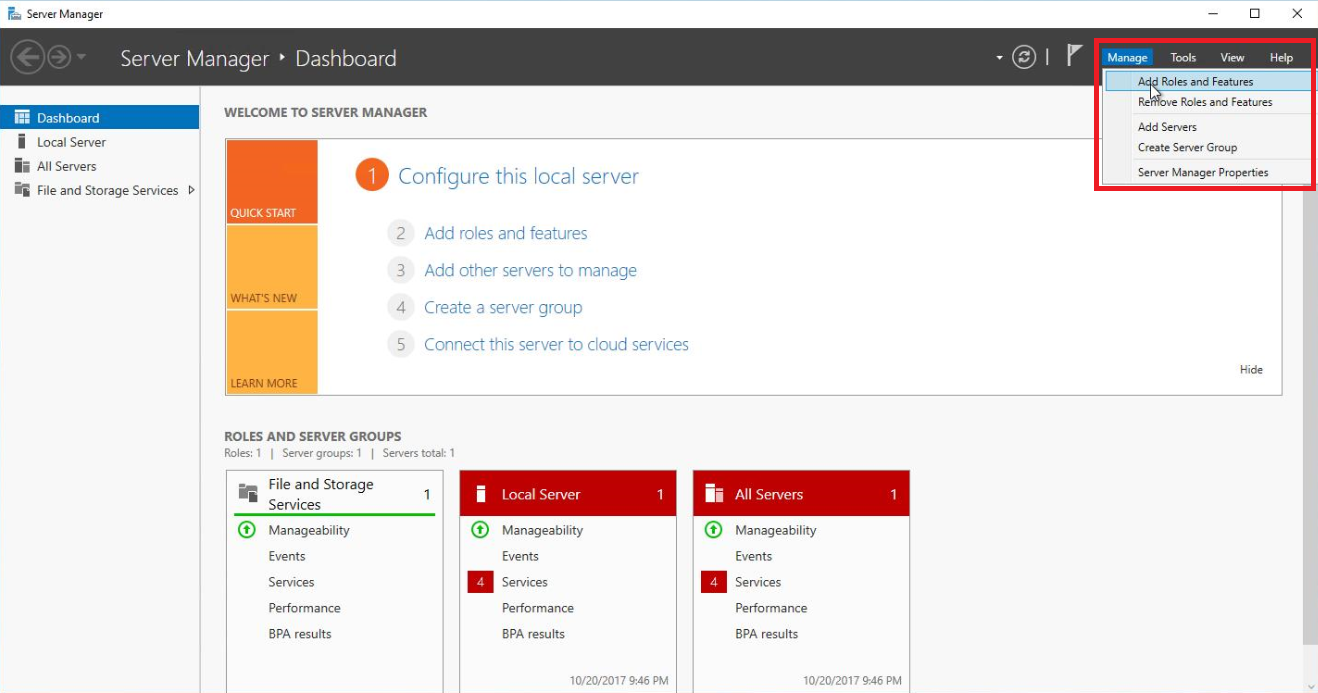
サーバーマネージャーを開きます。
[Manage] (管理)メニューから、[Add Roles and Features] (ロールと機能を追加)を選択します。
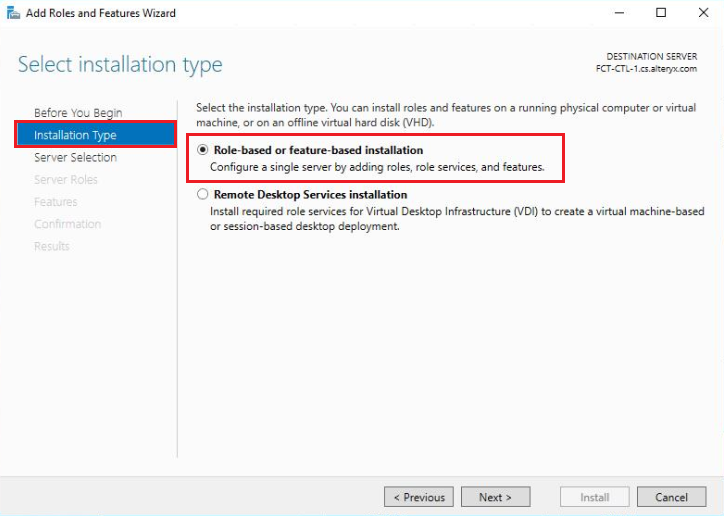
[Select installation type] (インストールタイプの選択)画面で、[Role-based or feature-based installation] (ロールベースまたは機能ベースのインストール)を選択し、[Next] (次へ)を選択します。
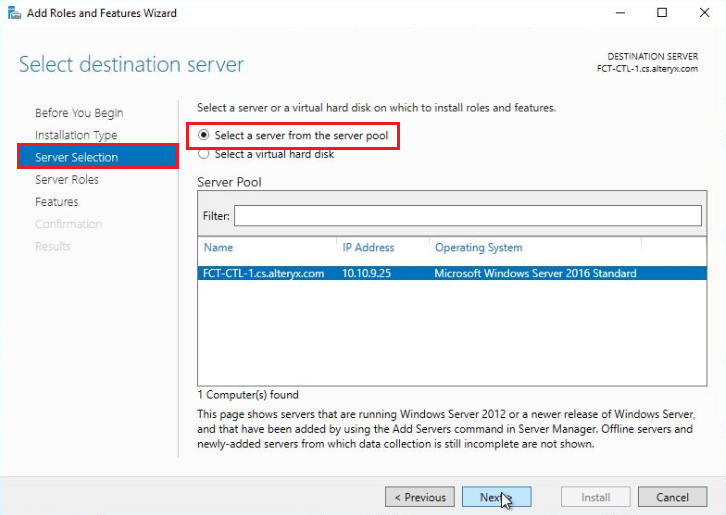
[Select destination server] (対象サーバーの選択)画面で、[Select a server from the server pool] (サーバープールからサーバーを選択)セクションから現在ログインしているサーバーを選択し、[Next] (次へ)を選択します。
[Server Roles] (サーバーロール)画面で、[Next] (次へ)を選択し、[Features] (機能)画面に進みます。
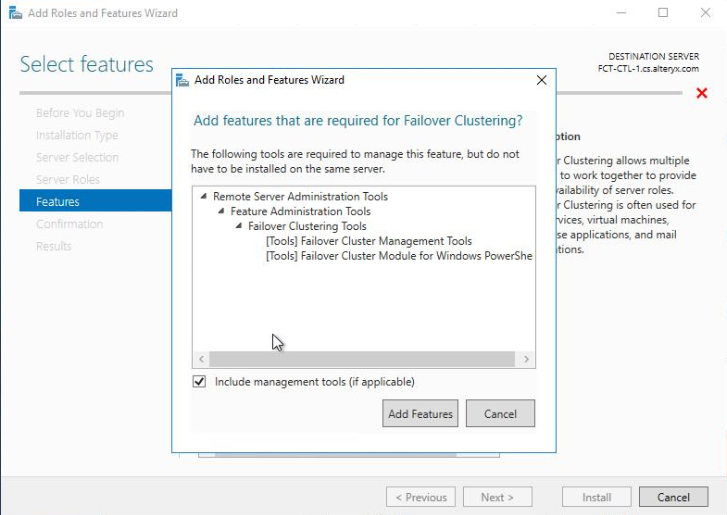
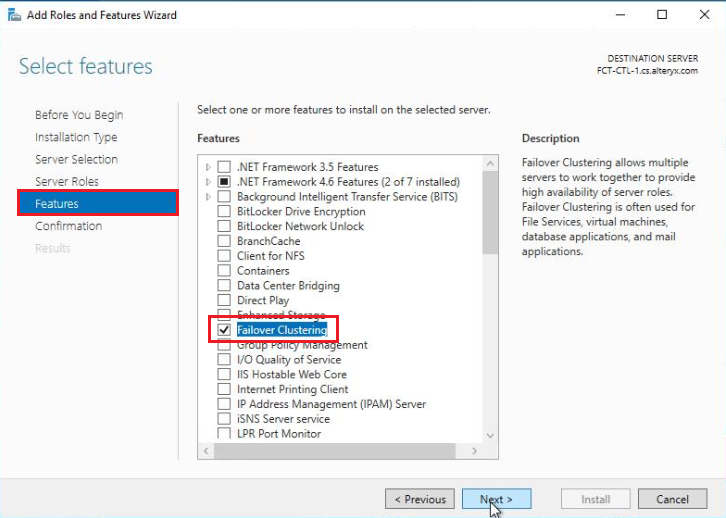
[Features] (機能)画面で、[Failover Clustering] (フェールオーバークラスタリング)を選択します。
[Failover Clustering] (フェールオーバークラスタリング)を選択すると表示される以下のウィンドウで、[Add Features] (機能の追加)を選択します。
[Next] (次へ)を選択し、フェールオーバークラスタリング機能の追加処理を続行します。
[Confirm installation selections] (インストール選択の確認)画面で、フェールオーバークラスタリング機能がリストされていることを確認し、[Install] (インストール)を選択します。
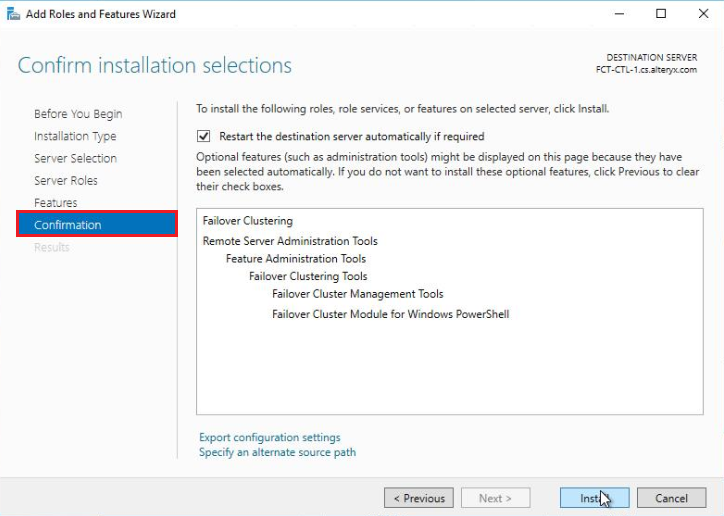
フェールオーバークラスタリング機能のインストールが完了したら、[Add Roles and Features Wizard](ロールと機能を追加ウィザード)を閉じ、各クラスターノードに機能を追加します。