Build Workflows
A workflow consists of connected tools that perform different functions to process data in Live Query. When you build a workflow, you add and connect tools. You also configure those tools and workflow properties. Workflow connections move in a downstream direction horizontally.
To build a Live Query workflow, select New from the Live Query home page and then select a connection and a catalog or schema in the Live Query Connection Details dialog. Live Query uses the selected connection to run the workflow and the selected catalog or schema to store temporary objects during execution.
To build a Cloud Native workflow, select the dropdown next to New from the Live Query home page and then select Cloud Native. Cloud Native workflows don't require a connection to a cloud data warehouse and run in Alteryx One.
Workflow Execution
The default processing path primarily uses SQL and doesn't require a persisted intermediate object for every workflow operation.
Temporary Objects
Depending on the workflow operation, Live Query can create temporary objects in the CDP. These can include:
Materialized temporary tables when materialization is required.
UDFs or routines required by supported Formula, RegEx, Text to Columns, and Summarize functionality.
External and temporary tables for non-CDP input.
Platform-specific staging objects.
Not every workflow step creates a temporary table. The default processing path can use nested inline SQL and subqueries without creating persisted objects.
Note
The connection selected at workflow creation is the execution CDP. The selected catalog or schema is where Live Query stores temporary objects.
Temporary Object Names
Temporary materialized tables use an Alteryx-specific naming convention so that these objects can be identified in the customer's CDP.
Temporary Object Cleanup
The expiration period depends on the artifact type and CDP:
Design-time generated SQL: Has a 4-hour time-to-live across all supported platforms.
Snowflake and Databricks artifacts: Become eligible for cleanup after 23 hours. Because cleanup runs every 8 hours, these artifacts are typically removed 23–31 hours after creation.
BigQuery tables: Use an 8-hour expiration.
BigQuery functions: Become eligible for cleanup after 23 hours. Because cleanup runs every 8 hours, these functions are typically removed 23–31 hours after creation.
For CDPs that don't support native object expiration, scheduled processes can remove temporary artifacts.
Cleanup relies on time-to-live settings and scheduled processes rather than only on successful workflow completion. As a result, temporary artifacts from failed or abandoned executions can also be removed.
Add or Remove Tools
To add a tool to a workflow, select any tool from the tool palette and drag it onto the workflow canvas.
To remove a tool from a workflow, select the tool, and use the Delete key on your keyboard.
Connect Tools
To connect tools in a workflow, drag a tool from the tool palette onto the canvas near the output anchor of another tool. You can also drag the output anchor from an existing tool to the tool you just added.
Note
Some browsers may handle tool alignment differently, making the tools appear misaligned.
Connections go in through the left side of a tool and out through the right side of a tool.
Some tools accept multiple inputs indicated by multiple input anchors.
Some tools have optional inputs indicated by a gray input anchor.
All tools with an output anchor can be output to multiple streams.
Connection Actions
Delete a connection: To delete a connection, select the connection and use the Delete key on your keyboard. Downstream tools are not deleted.
Insert a tool into a connection: Right-click on the connection, then select Insert.
Name a connection: Double-click any connection to add a name or rename the connection.
Canvas Options
Run Job: Runs the workflow. The button changes to Stop while the workflow is running.
The Run Job button is disabled by default and is only enabled when you have a connected Output tool in your workflow.
The workflow is automatically run every time there is a change in your workflow or tool configurations.
For Cloud Native workflows, you can select a specific engine to run your workflow. Learn more about which cloud engine to select.
Stop: Stops the workflow.
Refresh Workflow Data Sources: Clears cached workflow results and recalculates data using the current source data.
Cached results and previously calculated total row counts are cleared. Results are recalculated when the user selects a tool on the canvas. If a tool anchor is already selected, its results grid data is recalculated automatically.
If the refresh fails because of a cloud data warehouse error, the existing cached data is retained, and the error appears in the interface.
File: The options under File are...
New Workflow (Alt + N): Create a new workflow.
Open (Alt + O): Open a workflow that is saved in Live Query.
Open Recent: Open a workflow you recently accessed.
Save Version: Select to enter a Version Name for your current workflow. You can open saved workflow versions from Version History.
Version History: Open the Version History page. From the Version History page, you can...
Compare changes between 2 versions of a workflow, including who made each change and when.
Restore a previous workflow version or open a previous version as a new workflow.
View the JSON configuration of each version.
Save (Alt + S) and Save As: Save your current workflow to Live Query.
Duplicate: Create a copy of your workflow.
Rename: Change the name of your workflow.
Schedule: Open the New Schedule dialog to schedule your workflow run.
View: The options under View are...
Canvas Grid: Adds a grid to the canvas.
Mini Map: Shows a map of the entire canvas with a highlighted section that shows what is in view. To change your view, select and drag the highlighted section within the Mini Map.
Tool Names & IDs: Turn on or off the tool names and ID numbers under each tool icon.
Suggestions: See suggestions for tools to add to your workflow.
Tool Description Flyouts: When enabled, tool descriptions appear when you hover over a tool in the tool palette or the question mark icon in the tool configuration window.
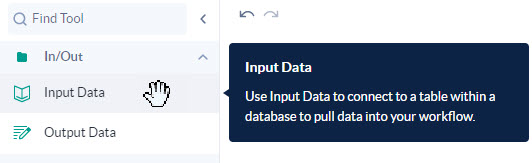
Figure: Tool descriptions appearing in the tool palette flyouts.
Options: Select Options to change...
Edit Live Query Connection: Change the connection and catalog or schema behind the Live Query workflow.
Workflow Settings: Change the workflow name.
Copy and Paste
To control where an item pastes onto the canvas, select the item, copy it (Ctrl + C), select where you want to paste the item, and then paste it (Ctrl + V). Live Query pastes the item at the same point as the cursor.