Share Dataset
When you create a new dataset, the default access setting is Private. Until you decide to share your dataset, it’s only available to you (the owner). A dataset can be shared with other users so that they can also view and create Preset Reports from this dataset.
You can share a dataset from the Library page in Alteryx One or the Datasets page in Auto Insights. Select 3-dot menu next to the Auto Insights dataset you want to share and then select Share, or select the icon or avatar in the Shared with column.
The Share window displays.
Enter the name of the users or groups with whom you would like to share this dataset.
Configure the permissions that should be assigned to the selected recipients. As the owner of the dataset, you can handle the permission rights at a user or group level. This means that certain people can have edit permissions, while others have read (Viewer) permissions.
Dependencies are not automatically shared with other users, although these are not required for collaborators to be able to use (for Viewers) or refresh, schedule, edit, and share (for Editors) the Auto Insights Dataset.
Nota
Admins can use row-based permissions to limit each viewer’s access to only the rows of data they’re permitted to see. For more information see Row Based Permissions.
Use the Manage button to disable any dependencies that will be automatically shared with this dataset.
When sharing an Auto Insights dataset, access to its dependencies (for example, the Alteryx One Platform dataset and Connection if appropriate) will automatically be shared with the selected users. Sharing of dependencies is enabled by default and can be disabled as required.
The Auto Insights dataset can be used, edited, refreshed, and shared by other users without needing access to the dependencies.
Select Back to return to the primary Sharing modal.
Select Share.
Row Based Permissions for a Shared Dataset
Nota
Row Based Permissions functionality in Auto Insights is not enabled by default for all customers, but can be enabled on request.
If you are interested, please reach out to your Customer Success Manager or Support team via My Alteryx at https://my.alteryx.com/.
After you share an Auto Insights dataset with a user as a Viewer, you can optionally configure row-based permissions through a Group in Admin Portal to limit which rows of data those viewers can access.
If no row-based permissions are configured for a dataset, viewers have access to the full dataset. When row-based permissions have been configured for a specific dataset, all Viewer users must be granted access to that dataset via a Group in Admin Portal.
To configure Row Based Permissions
Open Admin Portal > Groups.
Select the group you want to assign permission, or create a new one.
Add the relevant viewer or viewers to the group.
In Assigned datasets, add the dataset to which you want to grant the viewer(s) access.
Under Row-based permissions, select the plus sign to add rules that define which rows the group can access.
Select a column and value from the dropdown menus. You can only select segment/string fields.
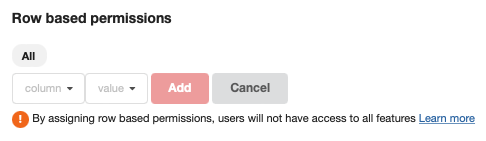
Select Add.
Importante
Sharing the dataset and configuring row-based permissions are separate steps.
Only configure row-based permissions when you want to restrict viewer access to specific rows in the dataset. If row-based permissions are not configured, viewers can access all rows in the dataset.
Example
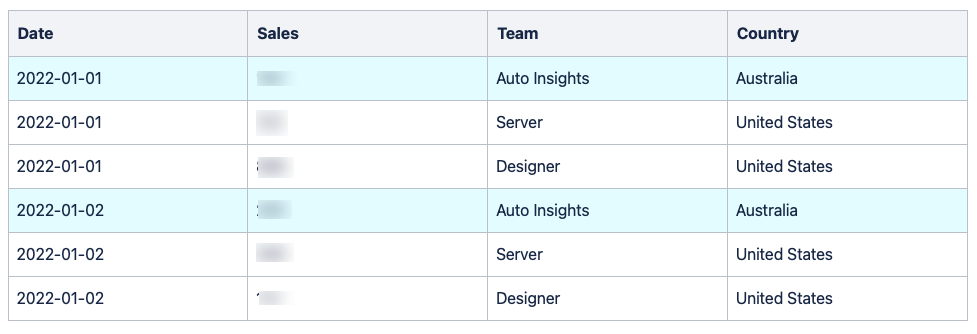
Here's an example of row-based permissions where field = Country and value = Australia. This means that only the colored rows are considered when users view insights with this row-based permission:
How are multiple row-based permissions handled?
Row-based permissions have very similar functionality to filters (available in the query bar).
When there are multiple row-based permissions for one field, Auto Insights treats them as a logical OR operation.
Example: {field=Team, value=Auto Insights}, {field=Team, value=Designer} means that the user is able to see rows for Auto Insights or Designer.
When there are multiple row-based permissions for different fields, Auto Insights treats them as a logical AND operation.
Example: {field=Team, value=Auto Insights}, {field=Country, value=United States} means that the user only sees rows where Country is United States AND Team is Auto Insights , which yields no rows in the given table example.