Box
The Box connector lets you connect to Box storage in Designer. Box is available as a data source in the Input Data and Output Data tools, letting you read from and write to Box directly in your Designer workflows.
Importante
New Connector Version in Designer
If your workflow uses the standalone Box Input or Box Output tools, those are now deprecated. Instead, use connector version 3.0.0 or later with the Input Data and Output Data tools. Use the workflow migration utility to update existing workflows.

If you want to update the Box connector in your Designer workflows, you can use the workflow migration utility.
Prerequisites
Requirement | Detail |
|---|---|
Designer Version |
|
Connector Version | Box version 3.0.0 or later. Available from Designer Add-Ons. |
Box Permissions | See Box App Registration. |
DCM | You must enable DCM in Designer. Go to Options >User Settings > Edit User Settings > General and select Override DCM Settings to enable it. |
Network Access | Outbound access to Box and Box OAuth endpoints. |
Box Connector Details
Box is available in Designer Desktop 2025.1 Patch 5 and later as a data source for the Input Data and Output Data tools. To learn more about the file type options, go to Read Data from Box or Write Data to Box.
Notas de versão do Conector 1.0.0 (Python)
ID | Descrição |
|---|---|
v3.0.0 |
Known Issue
|
Install the Connector
You can easily install the latest version of the Box connector from Designer via the Add-Ons. This is the recommended installation method that allows you to browse, install, and update connectors without leaving Designer or visiting the Alteryx Marketplace.
To install the connector…
In Designer, go to Add-Ons > Manage Marketplace Add-Ons. You will see a list of available connectors.
Select Box Tools Connector and select Install. Designer downloads and installs the package. Designer might require a restart to complete the installation.
After installation and setup are complete, the Box connector is available from the Input Data and Output Data tools.
Set Up a Connection
To connect to Box connector using DCM...
Drag the Input Data or Output Data tool to the canvas, and select Connect to Data.
In the Connector Setup, select Create or Browse a Data Connection.
If you've created a Box connection before, you can select the connection from the Recents tab.
Select + New. From the list of technologies, select Box.
Enter the Connection Name and Data Source Name.
In the Credentials section, select your authentication method, and enter the credentials. For more information, see Authentication Methods.
Select Save. You can also select Test Connection to validate your credentials before saving.
Select Connect. Box may request authentication.
Select the read or write configuration in the Options window. To know more about the options, see to Read Data from Box or Write Data to Box.
Select Confirm to create a connection to the file. You can continue building your workflow.
You can use the same Box connection in both the Input Data and Output Data tools.
Workflow Migration
If your existing workflows use the deprecated Box Input or Box Output tools, you need to migrate them to use the new connector. Use the workflow migration utility to update existing workflows. The utility requires Designer 2025.2 Patch 3 or later.
The utility previews all the changes and replaces deprecated tool instances with the new connector versions without breaking the workflows.
Review the Changed Behavior and Limitations sections before you migrate.
Nota
Your existing Box connections may need to be recreated. Connections created with Box connector version 2.5.8 and earlier do not automatically become version 3.0.0 connections.
Authentication Methods
Box supports four authentication methods. Use the table below to choose the right one for your use case.
Method | Details |
|---|---|
Built-in |
|
Custom App |
|
Access Token |
|
JWT app auth |
|
All four methods support Test Connection, which validates your credentials before you save the connection.
Changed Behavior from Previous Version
Review the changed behavior from version 2.5.8.
Shared links are accessed with the Raw Path feature. Not an authentication method.
Include subfolders checkbox is part of the Download File or Folder input option, which handles files and folders together.
The legacy option Rename is now Create a New File, which appends a timestamp rather than a unique number.
Limitations
You can use the Modify option in Box Output to append data to an XLSX file. Box connector versions 2.5.8 and earlier also support appending data to CSV and YXDB files. In version 3.0.0, Append is supported for XLSX files only.
The Upload File to Box output option is not available in version 3.0.0. It will be part of an upcoming release.
Box connector version 3.0.0 is available in Designer Desktop. Support for Alteryx One is planned for a later release.
Desktop Automation (Scheduler) is not supported by this connector.
Workflows that contain the Box connector must use the AMP engine.
Gerenciador de Conexões de Dados
As ferramentas do Box 2.5.0 e versões posteriores são compatíveis com o Gerenciador de Conexões de Dados para um armazenamento mais fácil e seguro de suas credenciais. Crie uma conexão com o Box e reutilize facilmente as credenciais armazenadas em fluxos de trabalho que incluem as ferramentas do Box. O Alteryx Server exige credenciais armazenadas para executar com êxito os fluxos de trabalho publicados.
The Box tools version 2.5.0 and later also support Data Connection Manager.
Habilitar o AMP Engine
Certifique-se de ter o AMP Engine habilitado para os fluxos de trabalho que contêm as ferramentas do Box 2.5.0 e versões posteriores para aproveitar todo o potencial dos recursos do Designer.
Registro no aplicativo Box
Faça login em https://alteryx.app.box.com/developers/console usando suas credenciais do Box.
Clique em Criar novo aplicativo.
Selecione Aplicativo personalizado.
Em Método de autenticação, selecione Autenticação de usuário (OAuth 2.0). Insira o Nome do aplicativo e clique em Criar aplicativo.
Na guia Configuração em Escopos de aplicativo, selecione Gravar todas as pastas e arquivos armazenados no Box para fornecer permissão ao aplicativo.
Selecione Salvar alterações.
Para gerar um novo token de desenvolvedor, clique em Revogar, depois, em Gerar token de desenvolvedor.
Você pode usar ID e Segredo do cliente em Credenciais do OAuth 2.0 para autenticação.
Configuração personalizada do aplicativo
Para evitar um problema de CORS do Box ao usar o aplicativo com autenticação OAuth ou token de acesso e JWT, use uma configuração personalizada:
Aplicativo Box com autenticação OAuth:
Adicione o URI de redirecionamento https://cef.alteryx.com/designer/oauthcallback para solucionar o problema de CORS da janela do CEF.

Insira
file://*em Origens permitidas.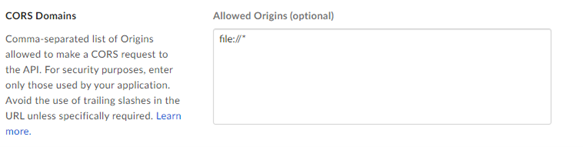
Aplicativo Box com token de acesso e autenticação JWT:
Insira
file://*em Origens permitidas.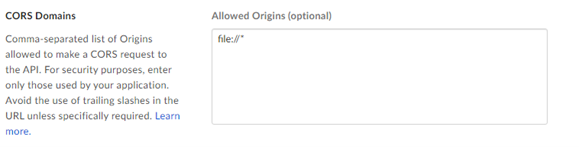
We have deprecated the below standalone Box tools. Install the latest Box Connector to leverage the newest features.

Use o conector do Box para executar, agendar e publicar fluxos de trabalho do Designer utilizando arquivos armazenados no seu espaço de trabalho do Box. Os tipos de arquivo compatíveis são XLSX, CSV e YXDB.
Notas de versão independentes das ferramentas do Box
Versão | Descrição |
|---|---|
v2.5.8 |
|
v2.5.7 |
|
v2.5.6 |
|