Live Query Menus
Access various windows and common actions from the main menu in Live Query.
Switch Apps
Use the App Switcher to switch to other Alteryx One apps.
View Menu
Configure Live Query via the View menu:
Canvas Grid: Adds a grid to the canvas.
Mini Map: Shows a map of the entire canvas with a highlighted section that shows what's in view. To change your view, select and drag the highlighted section within the Mini Map.
Tool Names & IDs: Use the toggle switch to show or hide tool names and tool IDs on the canvas.
Suggestions: See suggestions for your workflow in the Suggestions Panel, located in the Results Grid.
Tool Description Flyouts: When enabled, tool descriptions appear when you hover over a tool in the tool palette or over the question mark in the tool configuration window.
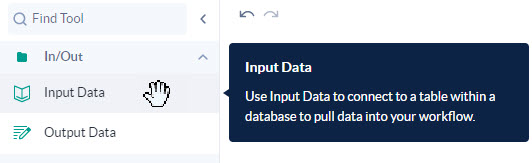
Figure: Hover over a tool to see its description.
User Settings
Alteryx One Preferences: To change your User or Workspace preferences, select Alteryx One Preferences from the User Settings menu.
Workspace: To change your workspace, select a workspace from the User Settings menu.
Sign Out: Sign out of Alteryx One.