Box
The Box connector lets you connect to Box storage in Designer. Box is available as a data source in the Input Data and Output Data tools, letting you read from and write to Box directly in your Designer workflows.
Importante
New Connector Version in Designer
If your workflow uses the standalone Box Input or Box Output tools, those are now deprecated. Instead, use connector version 3.0.0 or later with the Input Data and Output Data tools. Use the workflow migration utility to update existing workflows.

If you want to update the Box connector in your Designer workflows, you can use the workflow migration utility.
Prerequisites
Requirement | Detail |
|---|---|
Designer Version |
|
Connector Version | Box version 3.0.0 or later. Available from Designer Add-Ons. |
Box Permissions | See Box App Registration. |
DCM | You must enable DCM in Designer. Go to Options >User Settings > Edit User Settings > General and select Override DCM Settings to enable it. |
Network Access | Outbound access to Box and Box OAuth endpoints. |
Box Connector Details
Box is available in Designer Desktop 2025.1 Patch 5 and later as a data source for the Input Data and Output Data tools. To learn more about the file type options, go to Read Data from Box or Write Data to Box .
Note di release del connettore 1.0.0 (Python)
ID | Descrizione |
|---|---|
v3.0.0 |
Known Issue
|
Install the Connector
You can easily install the latest version of the Box connector from Designer via the Add-Ons. This is the recommended installation method that allows you to browse, install, and update connectors without leaving Designer or visiting the Alteryx Marketplace.
To install the connector…
In Designer, go to Add-Ons > Manage Marketplace Add-Ons. You will see a list of available connectors.
Select Box Tools Connector and select Install. Designer downloads and installs the package. Designer might require a restart to complete the installation.
After installation and setup are complete, the Box connector is available from the Input Data and Output Data tools.
Set Up a Connection
To connect to Box connector using DCM...
Drag the Input Data or Output Data tool to the canvas, and select Connect to Data.
In the Connector Setup, select Create or Browse a Data Connection.
If you've created a Box connection before, you can select the connection from the Recents tab.
Select + New. From the list of technologies, select Box.
Enter the Connection Name and Data Source Name.
In the Credentials section, select your authentication method, and enter the credentials. For more information, see Authentication Methods.
Select Save. You can also select Test Connection to validate your credentials before saving.
Select Connect. Box may request authentication.
Select the read or write configuration in the Options window. To know more about the options, see to Read Data from Box or Write Data to Box .
Select Confirm to create a connection to the file. You can continue building your workflow.
You can use the same Box connection in both the Input Data and Output Data tools.
Workflow Migration
If your existing workflows use the deprecated Box Input or Box Output tools, you need to migrate them to use the new connector. Use the workflow migration utility to update existing workflows. The utility requires Designer 2025.2 Patch 3 or later.
The utility previews all the changes and replaces deprecated tool instances with the new connector versions without breaking the workflows.
Review the Changed Behavior and Limitations sections before you migrate.
Nota
Your existing Box connections may need to be recreated. Connections created with Box connector version 2.5.8 and earlier do not automatically become version 3.0.0 connections.
Authentication Methods
Box supports four authentication methods. Use the table below to choose the right one for your use case.
Method | Details |
|---|---|
Built-in |
|
Custom App |
|
Access Token |
|
JWT app auth |
|
All four methods support Test Connection, which validates your credentials before you save the connection.
Changed Behavior from Previous Version
Review the changed behavior from version 2.5.8.
Shared links are accessed with the Raw Path feature. Not an authentication method.
Include subfolders checkbox is part of the Download File or Folder input option, which handles files and folders together.
The legacy option Rename is now Create a New File, which appends a timestamp rather than a unique number.
Limitations
You can use the Modify option in Box Output to append data to an XLSX file. Box connector versions 2.5.8 and earlier also support appending data to CSV and YXDB files. In version 3.0.0, Append is supported for XLSX files only.
The Upload File to Box output option is not available in version 3.0.0. It will be part of an upcoming release.
Box connector version 3.0.0 is available in Designer Desktop. Support for Alteryx One is planned for a later release.
Desktop Automation (Scheduler) is not supported by this connector.
Workflows that contain the Box connector must use the AMP engine.
Data Connection Manager
Gli strumenti Box versione 2.5.0 e successive supportano Data Connection Manager (DCM) per una memorizzazione più semplice e sicura delle tue credenziali. Crea una connessione a Box e riutilizza con facilità le credenziali memorizzate nei flussi di lavoro che includono gli strumenti Box. Alteryx Server richiede credenziali memorizzate per eseguire correttamente i flussi di lavoro pubblicati.
The Box tools version 2.5.0 and later also support Data Connection Manager.
Abilitazione di AMP Engine
Per sfruttare appieno il potenziale delle funzionalità di Designer, assicurati che AMP Engine sia abilitato per i flussi di lavoro che contengono gli strumenti Box versione 2.5.0 e successive.
Registrazione dell'app Box
Accedi a https://alteryx.app.box.com/developers/console utilizzando le tue credenziali Box.
Seleziona Crea nuova app.
Seleziona App personalizzata.
In Metodo di autenticazione, seleziona Autenticazione utente (Oauth 2.0). Immetti il nome dell'app e seleziona Crea app.
Nella scheda Configurazione di Ambiti di applicazione, seleziona Scrivi in tutti i file e le cartelle memorizzati su Box per fornire l'autorizzazione all'app.
Seleziona Salva modifiche.
Per generare un nuovo token sviluppatore, seleziona Revoca, quindi seleziona Genera token sviluppatore.
Per l'autenticazione, puoi utilizzare l'ID client e il segreto client dalle credenziali OAuth 2.0.
Configurazione dell'applicazione personalizzata
Per evitare un problema di CORS Box quando si utilizza l'app con autenticazione OAuth o token di accesso e JWT, utilizza una configurazione personalizzata:
App Box con autenticazione OAuth:
Aggiungi l'URI di reindirizzamento https://cef.alteryx.com/designer/oauthcallback per risolvere il problema di CORS della finestra CEF.

Immetti
file://*in Origini consentite.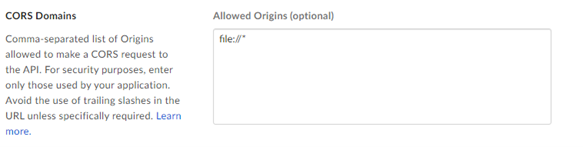
App Box con token di accesso e autenticazione JWT:
Immetti
file://*in Origini consentite.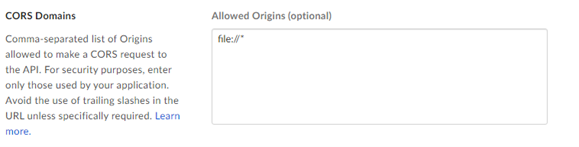
We have deprecated the below standalone Box tools. Install the latest Box Connector to leverage the newest features.

Utilizza il connettore Box per eseguire, pianificare e pubblicare flussi di lavoro da Designer, utilizzando i file memorizzati nello spazio di lavoro Box. I tipi di file supportati sono XLSX, CSV e YXDB.
8 dicembre 2025
Versione | Descrizione |
|---|---|
v2.5.8 |
|
v2.5.7 |
|
v2.5.6 |
|