 输出数据工具
 输出数据工具
使用“输出数据”工具将工作流结果写入受支持的文件类型或数据源。使用其他工具写入其他受支持的数据源。如需查看 Designer 支持的数据源的完整列表,请转到受支持的数据源和文件格式。
单个工具示例
此工具具有单个工具示例。转到示例工作流,了解如何在 Designer 中直接访问此示例和许多其他示例。
配置工具
输出数据配置窗口包含 2 个部分:写入文件或数据库和选项。请注意,写入文件或数据库的配置选项会根据是否启用 DCM 而有所不同。
首先,必须通过写入文件或数据库部分为输出选择一个文件或数据库。
然后,必须通过选项部分配置与该文件或数据库关联的设置。
使用 DCM 连接(默认)
以下步骤介绍在启用数据连接管理器 (DCM) 情况下的默认流程。
将输出数据工具拖放到画布后,请按照以下步骤操作:
在配置窗口的写入文件或数据库部分中,您可以输入输出文件路径或选择…
打开文件:浏览并连接至本地或网络目录中的文件。请参阅下文的“文件”部分。
连接至:打开连接器设置窗口。
当您选择“连接至”时,Designer 将显示连接器设置窗口。请使用以下选项卡之一配置数据连接:最近和连接。您还可以通过页面底部的更多下拉菜单,访问外部保管库并执行同步。
最近处理项
使用最近使用选项卡查看和访问最近使用的连接列表。这部分还包含以下选项的链接:
创建或浏览数据连接:使用 DCM 创建新连接或浏览已创建的连接。如需了解详情,请参阅数据连接管理器。
选择本地存储中的文件:选择要在输入数据工具中使用的本地文件。
数据集
2026.2 版本中的数据集支持(预览版功能)
此初始版本提供的 Alteryx One 数据集支持为预览版功能。请注意以下要求和限制:
此功能目前处于公开预览版阶段,正在进行开发。随着 Designer 的更新,重大变更可能会影响在早期版本中创建的资产,因此可能需要更新数据集配置。
若要通过输出数据工具连接到数据集,请务必启用 AMP 引擎。
您只能访问根据您的 Alteryx One 用户角色拥有权限的数据集(数据集必须在您的工作区中可用)。
每个输出数据工具仅可访问一个数据集。
请使用数据集选项卡,将输出数据工具连接至 Alteryx One 工作区中的可用数据集。这样就可以直接在 Designer 工作流中使用集中管理的数据集。要在工作流中使用 Alteryx One 数据集…
在连接器设置窗口的左侧菜单中选择数据集。
将显示一个可用数据集列表,包括名称、数据源、所有者、共享对象及上次更新时间。请注意,您只能访问您有权访问的数据集。
您可以筛选列表,以显示所有数据集、仅您拥有的数据集,或仅与您共享的数据集。您也可以使用搜索栏按名称查找数据集。
从可用数据集列表中选择一个数据集。
选择数据集后,输出数据工具将配置为在工作流中使用该数据集。
连接
使用连接选项卡,通过数据连接管理器 (DCM) 访问或创建连接。仅 DCM 支持的连接可用。
“连接”选项卡列出了所有先前创建的连接(包括名称、技术和最近更新信息),以及创建新连接的选项。您可以使用三点图标复制连接 ID、测试连接,或在不再需要时删除连接。
若要将输出数据工具连接到先前创建的连接,请在列表中找到该连接,然后选择连接按钮。
添加新连接
若要通过输出数据工具创建新连接,请按照以下步骤操作:
在“连接”选项卡上,选择 + 新建按钮以打开选择技术窗口。
接下来,您可以从支持的连接列表中选择连接技术。如有需要,您也可以使用搜索技术搜索框。
若您选择的技术支持多种连接类型,则会出现选择连接类型窗口。选择连接类型。这可能包括快速连接、使用 ODBC 管理员连接、使用本地暂存进行批量加载、通过 Amazon S3 上的暂存进行批量加载等。
若您选择需要多个连接的批量连接,系统将显示一个屏幕,提示您选择现有的批量连接。
使用选择按钮导航至批量连接部分,然后选择连接以选择连接。
选择多个批量连接后,请选择继续以在工作流中使用它们。
在新建连接屏幕上,请填写相关字段:
连接详细信息:提供连接名称。
数据源:提供数据源名称以及其他必需的数据源特定信息(有关更多信息,请参阅数据源)。
凭证:选择一种身份验证方法,然后输入所选身份验证方法所需的凭证信息(例如,客户端 ID、私密密钥、用户名和密码)。
提供必要信息后,请选择保存以创建连接。您将看到连接详细信息出现。选择连接以在工作流中使用此连接。
外部加密保管库
使用外部加密保管库选项卡,通过 DCM 访问或配置外部加密保管库。如需了解更多信息和操作说明,请转至 DCM 外部加密保管库。
“外部加密保管库”选项卡列出了所有先前创建的加密保管库(包括保管库名称、技术类型和上次更新信息),并提供创建新加密保管库的选项。
同步
借助 DCM,您可以在 Alteryx 应用程序之间同步凭证。如需了解详情,请转至 Designer DCM。
不使用 DCM 连接
重要
Workspace Execution 不支持非 DCM 工作流。因此,不建议使用此方法在输出数据工具中创建连接。
以下步骤介绍在禁用数据连接管理器 (DCM) 情况下的流程。
将输出数据工具拖放到画布后,请按照以下步骤操作:
请在配置窗口的写入文件或数据库部分中,输入您的输出文件路径或选择...
选择连接至时,Designer 将显示数据连接窗口。使用以下某个选项卡配置您的数据连接:最近、已保存、文件、数据源或 Server。
写入文件或数据库
Designer 将显示数据连接窗口。通过最近、已保存、文件、数据源或 Server 选项卡中的任何一个来配置数据连接。
注意
当保存为 CSV 文件时,AMP Engine 会将 SpatialObj 数据写入文件,而原始引擎则不会。这会导致文件大小不同,而且您可能会遇到性能下降的情况。
近期(非 DCM)
选择一个最近的连接。最近连接视图中包含最近配置的文件和数据连接。选择清除列表可删除所有最近连接。
已保存
选择已保存的连接。要重命名和编辑连接,请使用管理数据连接。
文件
使用选择文件按钮连接至数据集。
以下是支持的文件类型:
文件类型 | 文件扩展名 |
|---|---|
.cybd | |
.yxdb | |
Alteryx Spatial Zip | .sv |
.avro | |
逗号分隔值 | .csv |
dBase | .dbf |
ESRI 个人地理数据库 | .mdb |
ESRI Shapefile | .shp |
可扩展标记语言 | .xml |
.flat | |
GIS | .grc, .grd |
Google Earth/Google Maps | .kml |
.gz, .tgz | |
IBM SPSS | .sav |
.json | |
MapInfo Professional 数据交换格式 | .mif |
MapInfo Professional 表 | .tab |
Microsoft Access 2000-2003 | .bdb |
Microsoft Access 2007, 2010, 2013, 2016 | .accdb |
Microsoft Excel 二进制文档 | .xlsb |
Microsoft Excel 1997-2003 | .xls |
.xlsx | |
Microsoft Excel Macro-Enabled | .xlsm |
QlikView | .qvx |
SAS | .sas7dbat |
SQLite | .sqlite |
SRC Geography | .geo |
文本 | .txt, .asc |
.zip |
数据源
数据源显示受支持且经常使用的数据源。
工具:如果您为一个尚未安装的工具选择快速连接,系统将会在浏览器中为您打开 Alteryx 社区页面,以便您下载并安装该工具。请仔细阅读页面上的说明。
数据源:
Hadoop
选择 HDFS 下的快速连接,创建新的 Hadoop 数据库连接。
Designer 可连接至 Hadoop 分布式文件系统并读取 .csv 和 .avro 文件。所有执行 HDFS 标准的 Hadoop 发行版都受支持。
可以使用 httpfs(端口 14000)、webhdfs(端口 50070)或 Knox 网关 (8443) 读取 HDFS。具体使用哪一个服务器请咨询你的 Hadoop 管理员。如果您拥有 Hadoop 高可用性 (HA) 群集,则 Hadoop 管理员必须明确启用 httpfs。
MapR 可能不支持 Webhdfs。
在 HDFS 连接窗口中:
选择服务器配置:HTTPFS、WebHDFS 或 Knox 网关。
主机:指定已安装的 Hadoop 服务器实例。输入必须是 URL 或 IP 地址。
端口:显示默认端口号码 httpfs (14000)、webhdfs (50070) 、Knox 网关 (8443) ,或输入特定的端口号码。
URL:URL 根据“主机”默认生成。URL 可以修改。
用户名:根据群集设置,指定访问时使用的用户名和密码。
httpfs:需要用户名,但对输入的用户名不加限制。
webhdfs:不需要用户名。
Knox 网关:需要用户名和密码。
注意
Alteryx 不支持自签名证书。配置 Knox 身份验证时使用受信任的证书。
Kerberos:选择一个 Kerberos 身份验证选项,用于在 HDFS 中读写数据。您选择的选项取决于 IT 管理员对 HDFS Server 的配置方式:
无:不使用身份验证。
Kerberos MIT: Designer 使用默认的 MIT 票据对 Server 进行身份验证。您必须先使用 MIT Kerberos 票据管理器获取一个有效票据。
Kerberos SSPI:Designer 使用 Windows Kerberos 密钥进行身份验证,这些密钥是在使用 Windows 凭证登录 Windows 时获得的。因此,用户名和密码字段不可用。
(推荐)选择测试来测试连接。
选择确定。
指定文件的路径(例如
path/to/file.csv),或找到并选择文件。选择 Avro 或 CSV 文件格式 > 选择确定。
要连接到 HDFS 进行数据库内处理,请使用库内连接工具。
其他数据库
您也可以建立一个通用的连接或一个32位的数据库连接。
在连接到数据库之前,请务必考虑以下事项:
ODBC 和 OleDB 连接类型都支持空间连接。Designer 自动检测数据库是否支持空间功能,并显示所需的配置。
要连接到数据库进行库内处理,请查看数据库内概述。
已保存的数据连接
指向一个选项并选择已保存或共享的数据连接以进行连接,或选择管理以查看和编辑连接。
所有连接:显示保存到计算机的连接列表,以及从 Server 中与您共享的连接列表。
我的电脑:显示保存到计算机中的连接列表。
Server:显示通过 Server 与您共享的连接列表。
添加 Server:要添加 Server,请在提示出现时先指定 Server URL。接下来,如果弹出提示,请使用用户名和密码登录。登录后,返回已保存的数据连接,将鼠标悬停在列表中的 Server 上,即可查看从该 Server 共享的连接。
如需详细了解如何管理已保存和已共享的数据连接以及如何排错,请查看管理数据连接。
受支持的数据源
有关支持的数据源详细列表,请转至数据源。
Server
Server 显示每个 Alteryx Server 及其关联的 URL(已添加到本地计算机)。每个 Server 名称下方的列表都包含已保存的连接(存储在您可以访问的 Server 上)。
选择 + Server 以添加其他 Alteryx Server。
输出选项
选择文件格式选项。
重要
选项因连接的文件或数据库而异。如需了解重要的配置信息,请访问文件格式选项。
(可选)选择“从字段获取文件/表格名称”为所选字段中的每个值写入单独的文件。选择下拉列表,然后选择一个选项:
作为后缀附加至文件/表格名称:将所选字段名称附加到所选表格名称的末尾。
作为前缀附加至文件/表格名称:将所选字段名称附加到所选表格名称的开头。
更改文件/表格名称:将文件名更改为所选字段名。
更改整个文件路径:将文件名更改为所选字段的名称。名称必须是完整的文件路径。此选项可以覆盖完整路径目录中的原有文件。
选择包含完整或部分文件名的字段,然后选择一个字段。
(可选)选择将字段保留在输出中。
禁用输出工具
请选中禁用工具复选框,以禁用输出数据工具。这可防止该工具在您运行工作流时写入数据。禁用后,该工具将在工作流画布上显示为灰色。
当您开发工作流或对工作流排错时,此功能尤其有用。
注意
禁用写入输出的所有工具的全局设置(在工作流 - 配置运行时选项卡中)将取代此输出数据工具特属的设置。
查看输出文件
运行工作流后,选择“输出数据”工具。
在结果窗口中,选择消息按钮。
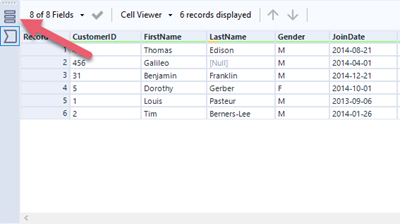
找到输出文件并选择文件链接将其打开。
将输出数据工具转换为输入数据工具
您可以将“输出数据”工具转换为“输入数据”工具。如果在用户设置中您有足够的撤消级别,则可以撤消此更改。
将输出数据工具转换为输入数据工具:
在工作流中右键单击输出数据工具。
选择转换为输入数据。
配置工具。
现在,您可将输出数据工具作为输入数据工具使用。