Box
The Box connector lets you connect to Box tools in Designer. Box is available as a data source in the Input Data and Output Data tool.
重要
New Connector Version in Designer
The Box connector is now part of the Alteryx One connectors experience. Review the information on this page carefully to ensure you're using the appropriate tools correctly.
If you want to update the Box connector in your Designer workflows, you can use the workflow migration utility.
コネクタ1.0.0リリースノート(Python)
コネクタリリースバージョンxxxx.x.x.xxxxx | |
|---|---|
ID | 説明 |
v3.0.0 |
|
Prerequisites
Requirement | Detail |
|---|---|
Designer Version |
|
Install the Connector
You can easily install the latest version of the Box connector from Designer via the Add-Ons. This is the recommended installation method that allows you to browse, install, and update connectors without leaving Designer or visiting the Alteryx Marketplace.
To install the connector…
In Designer, go to Add-Ons > Manage Marketplace Add-Ons. You will see a list of available connectors.
Select Box Tools Connector and select Install. Designer downloads and installs the package. Designer might require a restart to complete the installation.
After installation and setup are complete, the Box connector is available from the Input Data and Output Data tools.
Set Up a Connection
To connect to Box connector using DCM...
Drag the Input Data or Output Data tool to the canvas, and select Connect to Data.
In the Connector Setup, select Create or Browse a Data Connection.
If you've created a Box connection before, you can select the connection from the Recents tab.
Select + New. From the list of technologies, select Box.
Select Quick Connect and then select Setup Connection. The Connections window opens.
Select +New.
Specify the connection name and the data source name.
In the Credentials section, select your authentication method, enter the credential name, and specify the access token.
Select Save.
Select Connect. Box may request authentication.
Select the file to read from or write to in the file browser window.
Select the read or write configuration in the Options window.
Select Confirm to create a connection to the file. You can continue building your workflow.
Box アプリの登録
Box資格情報を使用して https://alteryx.app.box.com/developers/console にログインします。
[アプリの新規作成] を選択します。
[カスタムアプリ] を選択します。
[認証方法] で、[ユーザー認証(OAuth 2.0)] を選択します。アプリ名 を入力して、[アプリの作成] を選択します。
アプリケーションスコープ の [設定] タブで [Boxに格納されているすべてのファイルとフォルダーの書き込み] を選択して、アプリに権限を付与します。
[変更を保存] を選択します。
新しい開発者トークンを生成するには、[取り消し] を選択して、[Generate Developer Token] を選択します。
認証には、OAuth 2.0資格情報 から クライアントID と クライアントシークレット を使用できます。
カスタムアプリケーションのセットアップ
OAuth 認証またはアクセストークンと JWT でアプリを使用する際、Box CORS の問題を回避するには、カスタム設定を使用します。
OAuth 認証を使用する Box アプリ:
リダイレクト URI https://cef.alteryx.com/designer/oauthcallbackを追加して、CEFウィンドウのCORSの問題を解決します。

[許可する送信元] には「
file://*」を入力します。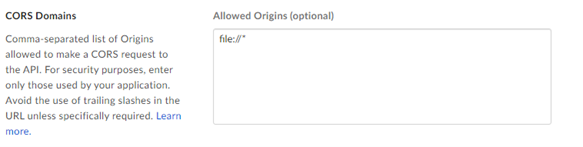
アクセストークンと JWT 認証を使用する Box アプリ:
[許可する送信元] には「
file://*」を入力します。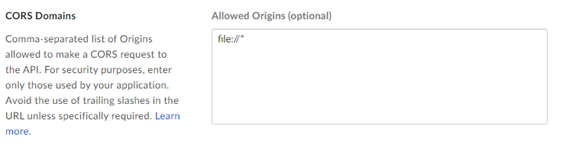
2025年12月8日
ID | 説明 |
|---|---|
TPM-5038 |
|
TPM-5006 |
|
TPM-4984 |
|
接続に使用する Alteryx ツール

Boxコネクタを使用して、Boxワークスペースに保存されているファイルを利用することで、Designerからワークフローの実行、スケジュール設定、公開を行います。サポートされているファイルの種類はXLSX、CSV、YXDBです。
注意
Desktop Automation (スケジューラー)はこのコネクタではサポートされていません。
データ接続マネージャー
Boxツールバージョン2.5.0以降では、データ接続マネージャー をサポートしているため、資格情報をより簡単かつ安全に保存できます。Boxへの接続を作成し、Boxツールを含むワークフローで保存された資格情報を簡単に再利用できます。Alteryx Serverで公開ワークフローを正常に実行するには、保存された資格情報が必要です。
AMP Engineの有効化
Boxツールバージョン2.5.0以降を含むワークフローで AMP Engine が有効になっていることを確認し、Designerの機能を最大限に活用してください。